Guides
How to Automate Invoicing for a Small Business
Automate invoice creation, delivery, reminders, and reconciliation with a practical setup that protects cash flow and client relationships.
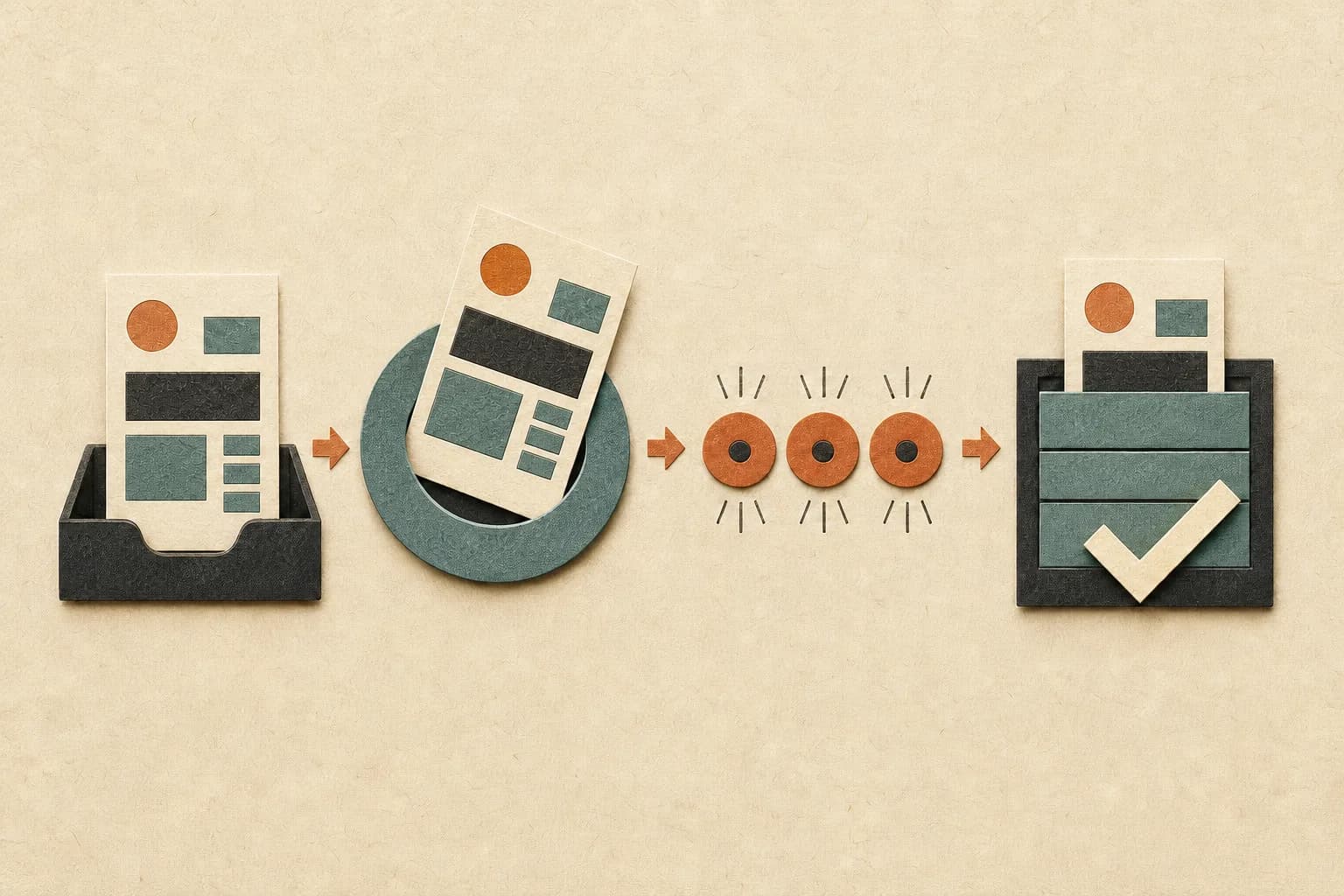
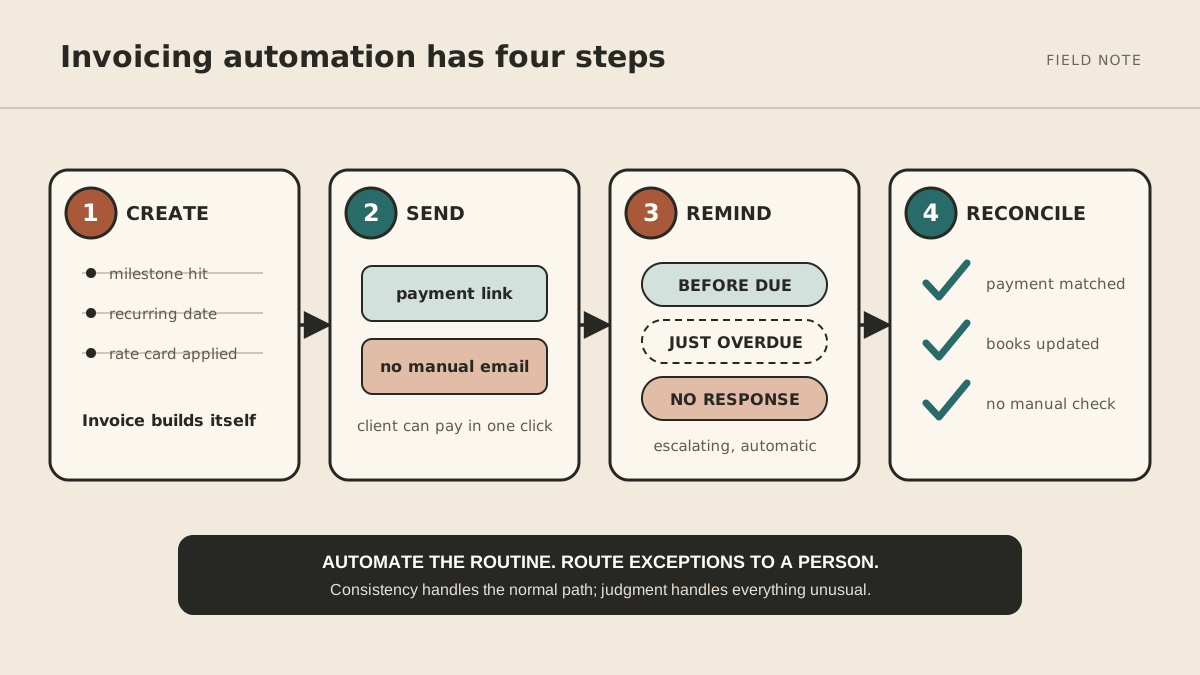
To automate invoicing, connect four parts of the process: create the invoice from a reliable trigger, send it with clear terms and an easy payment method, follow up on a schedule, and match the payment back to your records.
You do not need to automate all four at once. For most small businesses, the fastest useful improvement is to turn on scheduled reminders in the invoicing tool they already use.
This guide shows you what to set up, what to keep under human review, and how to build a reminder sequence that is firm without sounding robotic.
Why invoice automation matters
Late payment is not a small edge case. In QuickBooks' 2026 survey, 59% of small businesses said they had invoices overdue by at least 30 days, up from 47% the year before. Businesses in the survey with unpaid invoices were owed $17,700 on average. Those figures describe surveyed businesses, not every small business, but they show why a dependable collection process matters. The report includes its sources and methodology in the 2026 Small Business Late Payments Report.
Automation cannot make a customer able or willing to pay. It can remove avoidable delays:
- the invoice sat in drafts;
- the due date or payment instructions were unclear;
- nobody noticed that the due date passed;
- the owner postponed an awkward reminder; or
- payment arrived but was not matched to the invoice.
The aim is consistency, not invisibility. Routine cases should move without your attention, while disputes, hardship, unusual delays, and valuable relationships are surfaced to a person.
The four parts of an automated invoicing workflow
1. Creation
The system creates an invoice when a trustworthy event occurs:
- a recurring billing date arrives;
- a project milestone is approved;
- a delivery is accepted;
- tracked time is reviewed; or
- a subscription period begins.
Recurring invoices work well when the customer, amount, and cadence are stable. Variable project work needs a review step before sending. Do not let “project marked complete” create a bill if anyone on the team can change that status casually.
2. Delivery
The invoice goes to the right billing contact with:
- a recognizable sender;
- a specific description of the work;
- invoice and due dates;
- agreed payment terms;
- purchase-order or tax details when required;
- a direct way to pay; and
- a contact for questions.
Automation amplifies whatever you configure. A perfect reminder sequence cannot rescue an invoice sent to the wrong person with missing information.
3. Follow-up
The system checks invoice status and sends a message before or after the due date. Current QuickBooks Online documentation, for example, allows up to three automatic reminders scheduled around the due date and lets the business customize each message. Features differ by product, plan, and region, so confirm the controls in your own tool. See the official QuickBooks reminder instructions.
4. Reconciliation
When payment arrives, it is matched to the open invoice and recorded in the accounting system. Straightforward matches can be automatic. Partial payments, combined payments, fees, credits, refunds, and unidentified deposits should enter an exception queue for review.
How to automate invoicing step by step
Step 1: Map the process you use today
Take one recently paid invoice and write down every step from completed work to reconciled payment. Include the steps that happen outside your accounting software:
- Who decides the work is billable?
- Where do the customer, price, and terms come from?
- Who checks the invoice?
- How is it sent?
- How do you know it is late?
- Who follows up?
- How is payment matched and verified?
Circle every step that depends on someone remembering. Those are your first automation candidates.
Step 2: Clean up customer and payment data
Before adding automation, confirm:
- legal customer name and billing address;
- billing contact and backup contact;
- tax information where applicable;
- currency;
- payment terms agreed in the contract;
- purchase-order requirements;
- accepted payment methods; and
- who can approve a change to bank or payment details.
Bad data creates fast, repeatable mistakes. Test the workflow with your own address or a friendly internal account before turning it on for customers.
Step 3: Choose the creation trigger
Use a trigger that represents real approval.
For a monthly retainer, the trigger may be the first business day of the month. For project work, it may be a milestone approved by the client. For hourly work, it may be reviewed time entries, not merely submitted ones.
If the amount can change, create a draft for approval instead of sending automatically. A useful rule is:
Stable customer + stable amount + stable schedule = automatic send
Anything variable = automatic draft, human review
Many accounting tools support recurring invoice templates. QuickBooks' current documentation explains scheduled, reminder, and unscheduled templates and notes that sending and payment options depend on the template settings. Review the official recurring-invoice guide for one concrete example.
Step 4: Make payment easy
Offer the payment methods your customers actually use, and put the payment link on the invoice and in reminder messages. Test the link on mobile and desktop.
Convenience has a cost. Card, bank-transfer, and international payment fees vary, and settlement time is not the same as the moment a customer clicks “pay.” Record the fee, expected settlement time, and refund process when you choose a method.
Step 5: Create a reminder sequence
Start with three messages and adjust them to your contracts, customer relationships, and normal payment cycle.
A few days before the due date
Subject: Invoice [number] is due [date]
Hi [name] — a quick heads-up that invoice [number] for [work] is due on [date]. You can review and pay it here: [link]. If your team needs anything else to process it, reply here and I’ll help.
One or two business days after the due date
Subject: Invoice [number] is now overdue
Hi [name] — invoice [number], due [date], still shows as unpaid. Could you confirm its payment status or let me know what is holding it up? Here is the invoice and payment link: [link].
After the second reminder receives no response
Subject: Action needed on overdue invoice [number]
Hi [name] — I have not received payment or an update for invoice [number], which was due [date]. Please reply by [reasonable date] with the payment date or any issue we need to resolve. If someone else handles payment, please copy them here.
Stop automated reminders when:
- the customer disputes the invoice;
- a payment plan has been agreed;
- payment is pending or received but not yet matched;
- the customer reports hardship;
- the contact details may be wrong; or
- the account is moving into a formal collection process.
At that point, a person should decide the next step. Do not let a generic sequence keep escalating while a real conversation is underway.
Step 6: Build an exception queue
Your system should show more than “paid” and “unpaid.” Create a short list of cases that need attention:
- invoice delivery failed;
- invoice was viewed but not paid;
- customer asked a question;
- reminder sequence ended with no reply;
- partial or combined payment;
- payment amount does not match;
- repeated lateness from the same account; or
- request to change payment details.
Assign an owner and a review frequency. An exception with no owner is just a quieter manual process.
Step 7: Test, then expand
Run the workflow on five to ten low-complexity invoices. Check:
- Was the invoice correct?
- Did it reach the right person?
- Did payment links work?
- Did reminders stop after payment?
- Were replies visible to a person?
- Did the accounting record match the deposit?
Fix the edge cases before applying the workflow to every customer.
Keep these decisions under human control
Automation is good at dates, templates, status checks, and routing. Keep judgment around:
- disputed work or pricing;
- changing contract terms;
- waiving fees or offering a payment plan;
- pausing service;
- sending an account to collections;
- changing bank details; and
- messages that could materially affect the relationship.
If you use an agent to monitor invoices or draft follow-ups, define what it may read, what it may draft, and what it may send. The AI agent approval-boundaries guide offers a practical framework for reversible actions and explicit approvals.
Late fees also need care. Whether you can charge them, how much, and what notice is required depend on your agreement and jurisdiction. Even QuickBooks' setup guidance tells businesses to check applicable local requirements. Treat the product's late-fee documentation as feature guidance, not legal advice.
A weekly invoice-automation check
Spend 15 minutes once a week reviewing:
| Check | Question |
|---|---|
| Delivery | Did any invoice bounce or go to the wrong contact? |
| Due soon | Is anything missing approval, a PO, or supporting detail? |
| Overdue | Which invoices are in the normal sequence? |
| Exceptions | Which accounts need a personal reply or decision? |
| Reconciliation | Are there unmatched, partial, or duplicate payments? |
| Pattern | Is one customer, service, or internal step repeatedly late? |
The pattern column is where the real improvement happens. If the same customer always needs a purchase order, collect it before the work begins. If invoices wait three days for internal approval, change the approval path. Do not automate around a preventable defect.
Invoice automation FAQ
What is the easiest invoicing task to automate first?
Automatic reminders are usually the simplest starting point because they use invoice status and due dates you already have. Review the default wording and timing before enabling them.
Can I automate invoices without changing accounting software?
Possibly. Check whether your current tool supports recurring invoices, scheduled reminders, online payment links, bank feeds, and payment matching. Availability may vary by plan and region. Use an integration only when the built-in workflow cannot meet a real requirement.
Should invoices be sent automatically?
Send stable recurring invoices automatically when the customer, amount, schedule, and terms are predictable. For variable work, generate a draft and require approval before sending.
How often should automated reminders go out?
There is no universal cadence. Base it on your agreed terms, customer type, normal processing time, and risk. A pre-due reminder plus two post-due messages is a reasonable starting structure, then route the case to a person.
Will automated reminders damage customer relationships?
Clear, accurate, and appropriately timed reminders are less likely to cause friction than inconsistent or emotional follow-up. Problems arise when the message is wrong, ignores a dispute, or keeps escalating after the customer has replied.
What should happen after the final automated reminder?
Stop the sequence and review the account. Confirm delivery, contact the right person, ask whether there is a dispute or processing issue, and decide whether to agree on a date, change terms, pause work, or use a formal collection path.
Start with the reminder you already have
Open your invoicing tool and inspect its current reminder settings. Rewrite one template so it names the invoice, due date, work, payment link, and a human contact. Test it, then turn it on for a small group of straightforward customers.
MyAgnts is one option for monitoring the exception queue, preparing a weekly overdue summary, and drafting case-specific follow-ups for approval. Keep financial terms, disputes, payment plans, and escalation decisions with a human owner.